Provider Upload JCBA Plan Final Draft: Error Handling
The user must be logged in as a Lead Provider or the Lead Issue Provider on the JCAB plan final draft.
If a JCBA plan needs to be deleted, contact the CTS Coordinator.
The CTS dashboard.
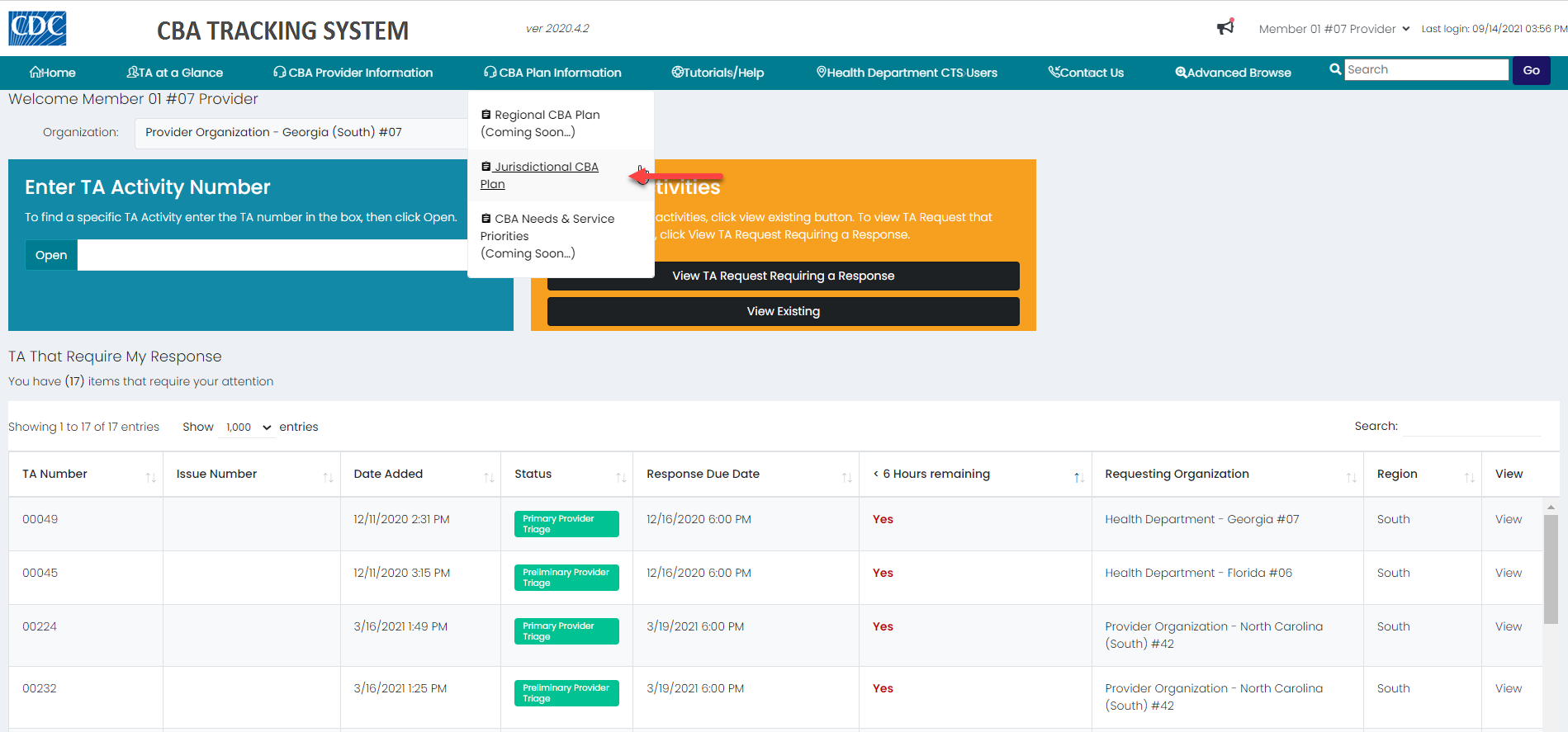
- Place the mouse pointer over the CBA Plans Information menu and click the Jurisdictional CBA Plan link.
- The CBA Plan Information paged displays.

Narrow Display Results
- To narrow the display of jurisdictional CBA plans on the page, select a JCBA Plan Announcement from the drop-down list. To further narrow the results, select a JCBA Plan Year from the drop-down list.
- Or click the checkbox Select JCBA Plan that require my response to narrow the results.
- Locate the JCBA plan in the list; verify the status is Not Received and click the Add JCBA Plan link in the Actions column.
- The Add New JCBA Plan dialog box displays.

- Under the CBA Plan Input Type header, click the Upload unapproved JCBA Plan radio button.
- The JCBA Plan Meeting Date calendar displays.

- Enter the date that you met with the health department contact (HDC).
- Click the Proceed button.
- The Jurisdictional CBA Plan Upload page displays.

Note: The instructions for importing a jurisdictional CBA plan from Excel displays at the top of the page. Click the Show/Hide Instructions button to hide the instructions.
- The information from the jurisdictional CBA plan auto-populates the fields on the page, as does the JCBA Plan Meeting Date that was entered in the dialog box.
- Click the Choose File button.
- The Choose File to Upload window displays.

- Select a JCBA Plan Excel file and click the Open button.
- Click the Load Excel file button.
Note: If there is an issue with jurisdictional CBA plan when trying to upload the file, one of the following messages may display. Also, if a jurisdictional CBA plan needs to be deleted, contact the CTS Coordinator.
Exception Error
If the Jurisdictional CBA Plan Upload Failure message displays, the file has approval dates for the HDC, Plan Coordinator, PPB PO and the CBB. This JCBA Plan needs to be sent to the CTS Coordinator.

Typical Error
If there is an error in the file, a message like this displays. In this example, a column header is missing in the file. Add the header to the file and upload the file again.

Incomplete Issue
If there is an issue with a JCBA plan issue in the file, the following message displays.

- Click the OK button in the Unapproved Jurisdictional CBA Plan dialog box.
- The JCBA Plan Details page displays.


- Click the Complete JCBA Plan button under the Actions header.
- The Complete JCBA Plan message displays.

- Click the OK button.
- The New JCBA Plan for Announcement #: 18-1802 page displays for the issue that has an error.


- Enter the missing information and click the Save Issue button.
- The Confirm message displays.

- To add another issue, click the Yes button; otherwise click the No button. (In this example the No button was selected.)
- The Complete JCBA Plan Issue dialog box displays.

-
- If Yes is selected, a second question displays.

-
- If Yes is selected, for the question “Do you want to upload supporting documents?” the JCBA Plan Supporting Documents dialog box displays.
- If No is selected, for the question “Do you want to upload supporting documents?” the Confirm message displays. (In this example the No button is selected.)
Note: To see how to add supporting documents go to JCBA Plan Supporting Documents under Jurisdictional CBA Plan.
- Click the Save button.
- The Confirm message displays.

- Click the Yes button and then click the OK button.
- The Confirm dialog box displays.

- Click the JCBA Plan Dashboard button.
- The Jurisdictional CBA Plan Information page displays.
- Click the checkbox for Select JCBA Plan where I am the Lead Provider or Lead Issue Provider to view the JCBA Plan that was just uploaded.

- The status is Pending Approval HDC. The link in the Actions column is updated to View/Close Out Issue/Add Activity.